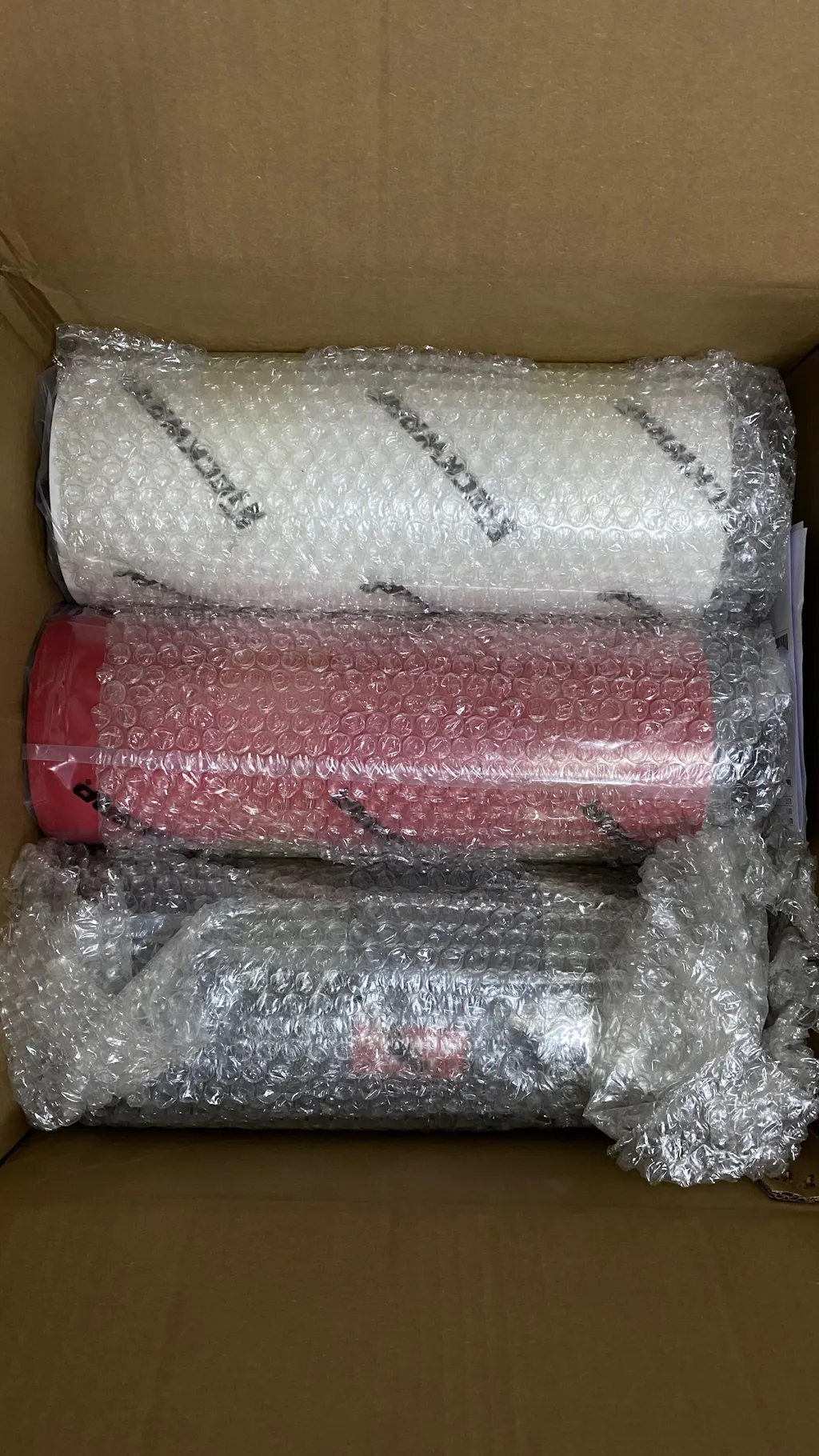
To make stickers at home with a machine, you need printable sticker paper, an inkjet printer, a laminate sheet, and a cutting machine like a Cricut or Silhouette. If you do not have a cutting machine, all you need is sticker paper, a printer, a laminate sheet, and a pair of scissors. The machine just gives you cleaner cuts on more complex shapes.
Making stickers at home is something a lot of people put off because they assume it takes expensive equipment. It does not. You can make a perfectly good sticker today with just a printer, a pack of sticker paper, and a pair of scissors. The supplies you need really do depend on which method you go with and how polished you want the final result to be.
We have been helping crafters make stickers with TeckWrap Craft materials for years, from complete beginners working with scissors on their kitchen table to experienced crafters running full Cricut setups. This guide walks you through every supply you will need, explains what each one actually does, and covers three different ways to get started based on your budget.
Before going through the full list, find your situation in this table. It will send you straight to the right method so you are not buying things you do not need.
Here is every item you might need, explained by what it does. You do not need all of these for every method. The ones marked Optional can be skipped if you are cutting by hand instead of using a machine.
Printable Sticker Paper Required
This is the base material your design gets printed onto. It has a peel-away backing so you can stick it to any smooth, clean surface once it is cut. Sticker paper comes in different finishes: matte gives a flat, professional look; glossy makes colors pop; holographic adds a rainbow shimmer; and glow-in-the-dark is great for novelty projects.
Make sure the sticker paper you buy is labeled as compatible with your printer type before you order. Inkjet-compatible paper and laser-compatible paper are different products.
TeckWrap Pick: TeckWrap Craft inkjet printable sticker paper is available in A4 sheets in matte, glossy, holographic, and glow-in-the-dark finishes. Works with all standard inkjet printers.
Inkjet Printer Required
You need a printer to get your design onto the sticker paper. Inkjet printers are the right choice here because they give richer, more saturated color output on sticker paper compared to laser printers, and they are compatible with far more sticker paper types.
Laser printers can work but they need specifically compatible sticker paper, and the results on glossy finishes tend to be less bold. For most home sticker projects, your standard inkjet printer is all you need. Popular options for sticker making include the Epson EcoTank ET-8550, Canon Pixma Pro-200, and HP ENVY 5055.
Laminate Sheet Strongly Recommended
A laminate sheet is a clear protective film you press over your printed design. It makes the sticker waterproof, scratch-resistant, and much longer-lasting. Without it, inkjet ink can smudge when it gets wet and the colors fade faster from handling and light exposure.
You do not need a laminating machine. Most sticker laminate sheets are cold-apply, meaning you just peel and press them by hand. They come in several finishes: glossy, matte, holographic, and more specialty options. Choose based on the look you are going for.
TeckWrap Pick: TeckWrap Craft laminate sheets come in Glossy Clear, Matte Clear, Holographic, and Fancy finishes. Each pack is sized to match TeckWrap sticker paper sheets.
Cutting Machine Optional
A cutting machine like a Cricut Explore Air 2, Cricut Maker, or Silhouette Cameo cuts precise shapes around your printed designs automatically using the Print-then-Cut feature. The machine reads small registration marks that are printed on the sticker sheet and cuts exactly around each design, even on complex or curved shapes.
If you do not have one, scissors or a craft knife work perfectly well for simpler shapes. The machine becomes worth it when you are making stickers regularly or need very detailed cuts that are hard to do by hand.
Cutting Mat Required if using a machine
If you are using a Cricut or Silhouette, you need a cutting mat to hold the sticker sheet flat and in position while the machine cuts. For most sticker paper, a standard grip green mat is the right choice. If your sticker paper is lightweight, go with a light grip blue mat because it will not damage or tear the sheet when you peel it off after cutting.
Weeding Tools Optional
Weeding tools are used to remove small pieces of material from inside or around your cut design. If your sticker has an intricate shape with holes or negative spaces inside it, you use a weeding tool or fine-point tweezers to pick out those small cut pieces from the sticker sheet. You only need this step if your design has those kinds of cut-out details.
TeckWrap Pick: TeckWrap Craft weeding tools and tweezers are available in the accessories section on the website.
Squeegee or Brayer Recommended
A squeegee or brayer helps press the laminate sheet down flat onto your sticker without trapping air bubbles underneath. It also helps when applying finished stickers to a surface, pressing them down firmly for a strong bond. A credit card or loyalty card works in a pinch for smaller sheets.
Transfer Tape Optional
Transfer tape lets you move a cut design from its backing paper onto a surface without the pieces shifting out of position. It is most useful when applying a large sticker or when you need to place a design in a very precise spot. For most home sticker projects, you can apply stickers directly by hand without needing transfer tape at all.
TeckWrap Pick: TeckWrap Craft transfer tape comes with a grid for accurate placement and is available in standard and strong-hold varieties.
Design Software Required
You need software to create or prepare your design before printing. Canva is free, runs in a browser, and is good for beginners. Procreate on an iPad is popular for hand-drawn sticker styles. Adobe Illustrator is the choice for professional vector work. If you are using a Cricut, you will need to use Cricut Design Space to set up Print-then-Cut, even if you originally designed in Canva or Photoshop and import it from there.
How to Make Stickers at Home: Step-by-Step
These steps work whether you are using a cutting machine or scissors. The process is the same right up to the cutting stage, which is where the two paths go different ways.
Steps to Make Stickers at Home
Create your design. Open your design software, Canva, Procreate, or Adobe Illustrator all work well. Set your canvas to A4 size so it matches your sticker paper sheet. If you are using a Cricut, you will import the finished design into Cricut Design Space to run the Print-then-Cut function from there.
Set up for printing. Turn bleed off in your software before you send the design to print. If bleed is left on, the registration marks that the cutting machine reads can shift, and the machine will cut in the wrong place. In Cricut Design Space, select Print-then-Cut and let the software add those registration marks for you automatically.
Load the sticker paper and print. Place your TeckWrap sticker paper sheet in the printer, printable side facing the right direction for your printer model. Once the sheet comes out, leave the printed side alone. Let the ink sit for at least five minutes before you touch or move the sheet.
Apply the laminate sheet. Peel back a small corner of the laminate sheet and line it up with the top edge of your printed sticker sheet. Press it down slowly using a squeegee or credit card edge, pushing from one end to the other to keep air bubbles from forming underneath. Once it is fully down, press firmly over the whole surface.
Cut your stickers. Machine: load the laminated sheet onto the cutting mat and feed it into the Cricut or Silhouette. The machine will find the registration marks and cut automatically. By hand: use sharp scissors for basic shapes, or a craft knife on a cutting mat for designs with more detail or curves.
Weed if needed. If your design has any cut-out areas inside the sticker shape, use a weeding tool or tweezers to lift and remove those small pieces from the sheet. Skip this step if your designs are solid shapes with no internal cut-outs.
Peel and stick. Peel the backing paper from each sticker and press it down firmly onto any smooth, clean, and dry surface. Run a squeegee over the top to push out any air and make sure it bonds properly.
Tip: Use an automated cutting machine such as a Cricut or Silhouette for the best results. The Print-then-Cut feature makes it easy to cut designs precisely with no guesswork.
How to Make Stickers at Home Without a Cutting Machine
You do not need a Cricut or any other machine to make stickers. Here are three methods that work with supplies most people already have at home.
Method 1: Scissors (Best for Beginners)
This is the simplest and most affordable way to get started. It works well for designs with basic shapes like rectangles, circles, or rounded squares.
Design your sticker in Canva or any software and print it onto TeckWrap sticker paper using an inkjet printer.
Let the ink dry for at least five minutes before touching the sheet.
Apply a laminate sheet over the printed design to protect it and make it waterproof.
Use a sharp pair of scissors to cut around each sticker. Leave a small border around the design edge for a clean, finished look.
Peel the backing and apply to your surface.
Tip: Sharp scissors make a real difference. Craft scissors with a fine tip give you much more control around curves than standard kitchen scissors.
Method 2: Craft Knife (Better Edges, No Machine Needed)
A craft knife and cutting mat give you considerably cleaner edges than scissors, especially on designs with curves or fine detail. This is a good middle ground before investing in a cutting machine.
Print and laminate your sticker sheet the same way as the scissors method.
Lay the laminated sheet flat on a self-healing cutting mat.
Use a sharp X-Acto or craft knife to cut around each design. Change the blade regularly because a dull blade will drag and tear the edge rather than cut it cleanly.
For curved sections, rotate the mat slowly rather than twisting the knife. This keeps the cut line smooth.
Method 3: Tape Sandwich (Zero Cost, Great for Kids)
This method needs no sticker paper, no printer ink on sticker paper, and no laminate sheet. It is a good quick craft for kids or for when you want to make stickers with whatever is in the house.
Draw or print your design on regular paper.
Lay a sheet of parchment paper flat on a table.
Place your design face up on top of the parchment paper.
Press a strip of clear parcel tape firmly over the design, smoothing out any bubbles as you go.
Flip the whole thing over and peel the parchment paper away from the back. The tape holds the design.
Cut around each sticker with scissors. The parchment paper becomes the release backing and the tape surface is what sticks to your chosen surface.
Tip: These tape stickers are water-resistant rather than fully waterproof. They work well on smooth dry surfaces like notebooks and laptop lids, but they will not hold up on water bottles or anything that gets wet regularly.
Making Stickers With a Cricut Machine
A Cricut machine handles the cutting step automatically with a lot more precision than you can get by hand. Here is what to know before your first sticker project with one.
Which Cricut Models Support Print-then-Cut?
Most Cricut machines support Print-then-Cut including the Explore Air 2, Explore 3, Cricut Maker, and Maker 3. The Cricut Joy does not have this feature. With Joy you can only use draw-and-cut, so it is not the right choice for printed sticker sheets.
How Print-then-Cut Works
The Print-then-Cut feature works by printing a small black registration square onto your sticker sheet along with your design. When you load the sheet into the machine, Cricut's built-in sensor reads those marks and uses them to figure out exactly where to cut, even if the sheet was not loaded in a perfectly straight line.
Settings to Get Right Before You Start
Setting
What to Do
Why It Matters
Bleed
Turn it off before printing
Bleed on causes registration marks to shift, so the machine cuts in the wrong place
Calibration
Run once before your first project: Menu, then Calibration, then Print-then-Cut
A calibrated machine cuts in the right spot every time
Cutting mat
Standard grip green for most sticker paper. Light grip blue for lightweight paper.
Wrong mat can tear lightweight paper when you remove it
Kiss-cut vs die-cut
Set in cut settings within Design Space
Kiss-cut leaves backing intact (sticker sheets). Die-cut cuts all the way through (individual stickers).
Kiss-cut vs Die-cut explained
Kiss-cut only cuts through the top sticker layer, leaving the backing paper intact underneath. Multiple stickers stay on one sheet and peel off one at a time. Best for sticker sheets. Die-cut cuts all the way through both the sticker and the backing, giving you individual fully separate stickers. Best for single stickers with a specific custom shape.
What Design Software Should You Use?
The right software depends on what device you are working on and how comfortable you are with design tools. Here is a straightforward comparison.
Software
Cost
Best For
Notes
Canva
Free (Pro plan available)
Beginners
Browser-based, no download, huge library of fonts and graphics. Good for simple sticker designs.
Cricut Design Space
Free (some features need subscription)
Cricut users
Required for Print-then-Cut on Cricut machines. You can import designs from Canva or Photoshop into it.
Silhouette Studio
Free basic version
Silhouette users
Required for Silhouette machines. Has more advanced design tools than Design Space in the paid tiers.
Adobe Illustrator
Paid subscription
Pro designers
Best for vector designs, detailed logos, and designs you plan to scale or sell commercially.
Procreate
One-time purchase, iPad only
Hand-drawn styles
Great for illustrated sticker art. Pairs well with an Apple Pencil. Export as PNG and import into Design Space.
How to Make Your Stickers Waterproof
Printed sticker paper is not waterproof on its own. Inkjet ink smudges and fades when it gets wet if there is no protective layer over it. The fix is simple: apply a laminate sheet after printing and before you cut.
Laminate Finish
Look
Best For
Available at TeckWrap
Glossy Clear
Shiny, makes colors stand out
Bright designs, gift stickers, decorative use
Yes, A4 sheets
Matte Clear
Flat, no reflection
Professional labels, minimalist designs
Yes, A4 sheets
Holographic
Rainbow shimmer that moves with the light
Decorative stickers, planners, special editions
Yes, multiple patterns
Fancy
Textured shimmer
Premium-feel sticker sheets
Yes, A4 sheets
How to apply laminate without bubbles
Peel back about 2 cm of the laminate backing and align that edge with the top of your printed sheet. Press it down firmly, then slowly pull the remaining backing away with one hand while pressing the laminate flat with a squeegee in your other hand. Work from one end to the other in a single continuous pass. Do not lift and re-press. Just keep moving forward.
How Much Does It Cost to Make Stickers at Home?
Startup costs vary depending on which method you go with. Here is a rough breakdown for three different setups so you know what to expect before you buy anything.
Standard setup Adds craft knife and cutting mat to the above
$50 to $90
Better edges, more detail
Regular hobby crafting without a machine
Full Cricut setup Cricut machine, mat, weeding tools, all materials
$300 to $450
Precise cuts on any shape
Regular production, selling stickers, business use
Once your setup is in place, the ongoing cost per sticker is low. A pack of 10 TeckWrap sticker paper sheets combined with one pack of laminate sheets runs around $20 to $30, which is enough to make roughly 80 to 100 individual stickers depending on the size of your designs.
Frequently Asked Questions
Yes. Making stickers without a Cricut is straightforward. All you need is sticker paper, an inkjet printer, a laminate sheet, and scissors. Print your design, let it dry fully, press the laminate sheet over the top, then cut around each sticker. A craft knife and cutting mat will give you cleaner edges than scissors on more detailed shapes, but you do not need any machine at all.
The scissors method is the cheapest. You need sticker paper, a printer, a laminate sheet, and scissors. If you already own a printer, the remaining materials cost around $20 to $30 for enough to make 80 to 100 stickers. Even cheaper is the tape sandwich method, which needs no sticker paper at all, just regular paper, clear parcel tape, and parchment paper.
You do not need one, but it makes a real difference. Without a laminate sheet, inkjet ink smudges when the sticker gets wet and the colors fade faster. With one, your stickers become waterproof and scratch-resistant. If the stickers are only going on dry indoor surfaces like a notebook or a frame, you might be fine without lamination. For water bottles, laptops, or anything that gets handled a lot, always laminate.
An inkjet printer is the best choice for sticker making. Inkjet printers give richer, more saturated color output on sticker paper than laser printers and are compatible with a much wider range of sticker paper types. Popular options include the Epson EcoTank ET-8550, Canon Pixma Pro-200, and HP ENVY 5055. Any standard home inkjet printer will work well for hobby-level sticker making.
Yes, as long as it is an inkjet printer. Most standard home inkjet printers print well on sticker paper. You do not need a specialist photo printer or a label printer. Just check that the sticker paper you buy is marked as compatible with inkjet printers before you order it.
Kiss-cut stickers are cut through the top sticker layer only, leaving the backing paper underneath intact. This means multiple stickers sit on one sheet and peel off individually when you need them. Die-cut stickers are cut all the way through both the sticker and the backing, giving you completely separate individual stickers. Kiss-cut is better for sticker sheets. Die-cut is better for single stickers with a specific custom outline shape.
Apply a cold-apply laminate sheet over your printed sticker sheet before you cut the designs out. TeckWrap Craft laminate sheets are available in glossy, matte, and holographic finishes and make stickers fully waterproof and scratch-resistant after application. Press the laminate down firmly using a squeegee to make sure there are no gaps or bubbles, especially around the edges where water can get in.
Yes. Homemade stickers are popular sellers on Etsy, at craft fairs, and through Instagram and TikTok shops. If you plan to sell regularly, a Cricut or Silhouette machine is a worthwhile investment because it speeds up production and gives you consistent results across every sheet. Always use your own original artwork or properly licensed graphics, and check the terms of any fonts or design elements you download.
Wrapping Up
You do not need a lot of equipment to start making stickers at home. A pack of TeckWrap sticker paper, an inkjet printer, a laminate sheet, and scissors will get you going today. When you are ready to step it up, a Cricut or Silhouette machine opens up more precise cuts and a faster workflow, which makes a big difference once you are making stickers in any kind of volume.
The best thing to do is start simple. Even a sticker you cut by hand from a design you made in Canva is a solid first project. You learn a lot from the first few sheets, and the process gets faster and easier each time.
Ready to get started? Shop TeckWrap Craft printable sticker paper in matte, glossy, holographic, and glow-in-the-dark finishes.
Trop trop contente de ce film à suncatcher, les arc en ciel sont magnifique et nombreux, plus qu'avec les autres que j'ai déjà pu tester auparavant, taille idéal pour les machine de découpe. Je recommande
I like that is easy to use, and I was very excited to try it, but I have used it many times and the color of the print doesn't stay after washing, even though I have followed the care instructions.