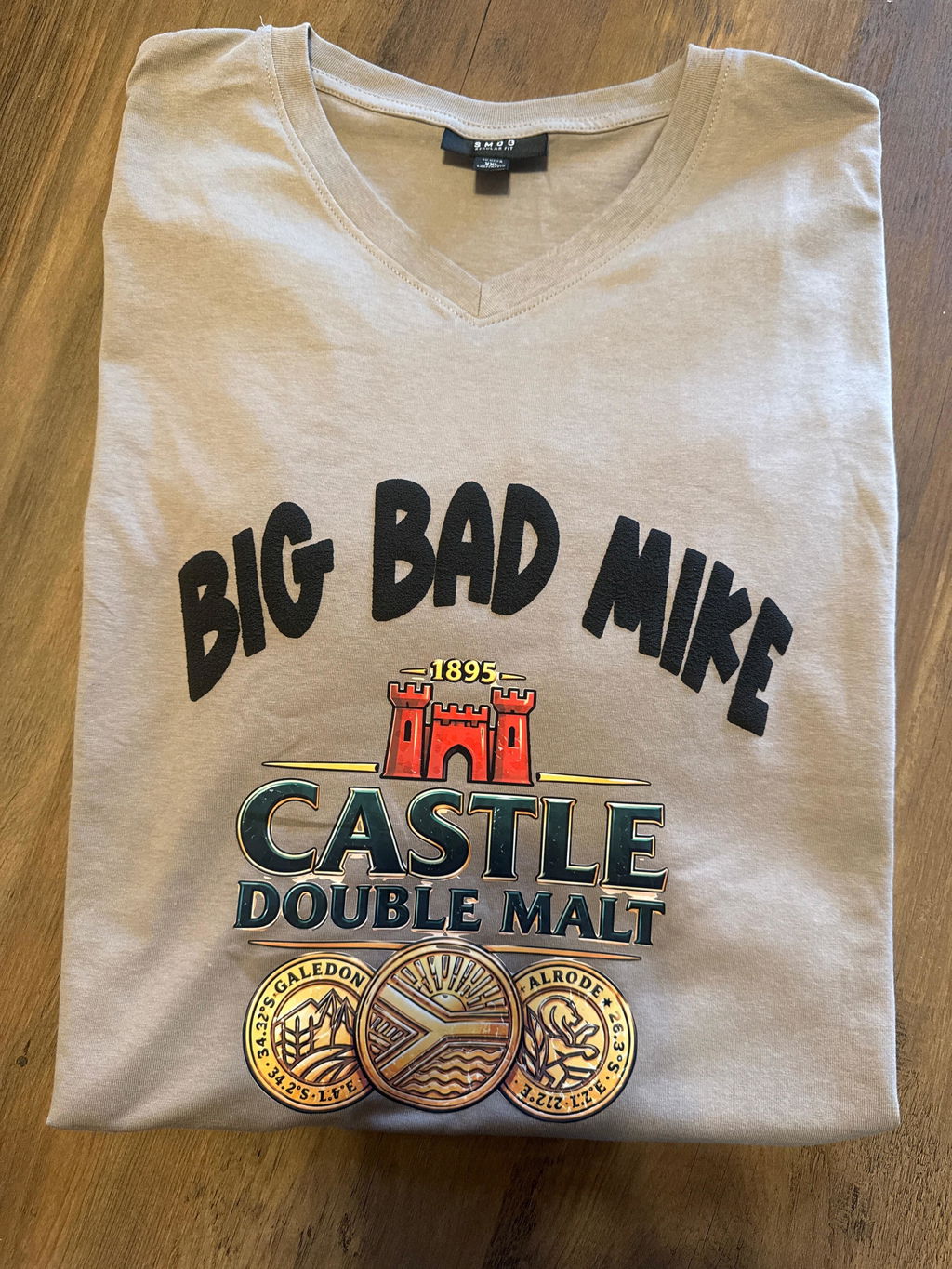
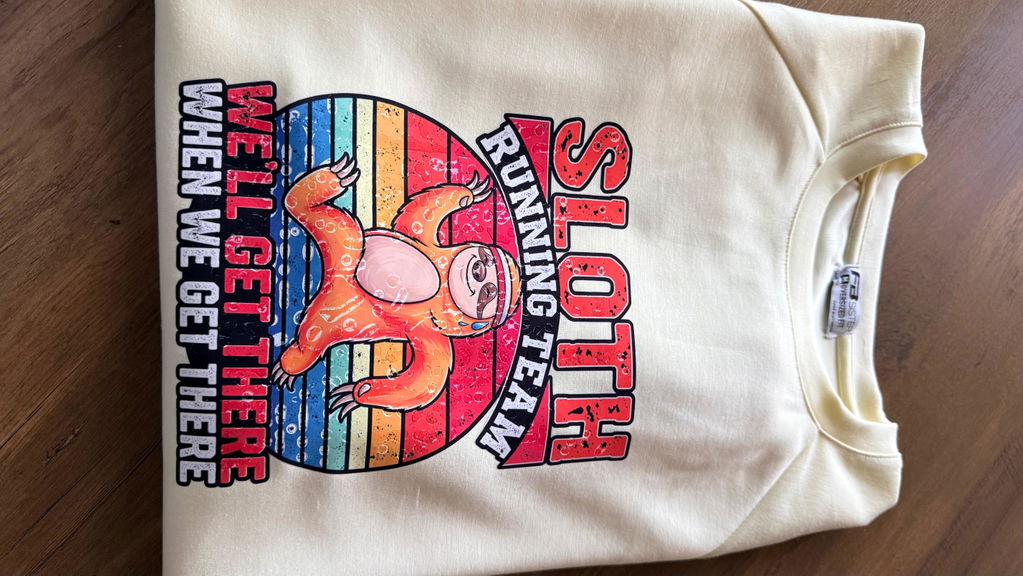
To print on heat transfer vinyl, you need specially labeled printable HTV and an inkjet printer. Print your design onto the white matte side of the vinyl sheet, let the ink dry completely, then cut the design with a cutting machine or scissors. After weeding, apply a heat transfer mask if needed, then press onto fabric at 375 degrees F for 12 to 15 seconds with firm pressure.
Printing on heat transfer vinyl gives you a lot more creative range than working with standard solid-color HTV. You can transfer full-color photos, gradients, and complex multi-color graphics onto fabric in a single application. That is something regular HTV cannot do.
The process is not complicated once you understand a few specific details around mirroring, printer settings, and peel type. We use TeckWrap Craft printable HTV regularly in our own projects, so the settings and tips here come from real experience.
What Is the Difference Between Regular HTV & Printable HTV?
Understanding this difference before you buy anything will save you from a costly mistake.
Regular HTV
Printable HTV
Comes in solid colors and finishes
Accepts full-color inkjet printing directly on the surface
You cut a shape from colored vinyl
You print the design, then cut around the printed image
No printer needed
Inkjet printer required
Mirror the design before cutting
Dark fabric HTV: no mirror. Light fabric HTV: mirror before printing.
Very durable through repeated washing
Good durability. Ink quality and press settings affect how long it lasts.
Best for text, logos, and solid shapes
Best for photos, gradients, and complex multi-color designs
What You Need to Print on Heat Transfer Vinyl
Here is every item you need with a plain explanation of what each one does. Items marked Optional can be skipped in some situations.
Printable HTV Required
The inkjet-printable kind specifically. Standard HTV will not work. TeckWrap Craft inkjet printable HTV comes in A4 sheets and works with all standard inkjet printers.
Inkjet Printer Required
Inkjet only, not laser. A laser printer will not bond correctly with the vinyl surface. Pigment-based ink gives more durable results than dye-based ink after pressing.
Heat Press Required
You need heat and firm even pressure to activate the HTV adhesive. A household iron works for smaller designs. See the iron section below.
Heat Transfer Mask Optional
A transparent sheet that holds all cut pieces of your design together for positioning on the fabric. Not needed if your design is one connected shape.
Parchment Paper or Teflon Sheet Required
Placed over the design during pressing to protect the vinyl and the heat press platen from direct contact.
Cutting Machine Optional
A Cricut or Silhouette cuts precise shapes around your printed design automatically. Scissors work for simple shapes.
Cutting Mat Optional
Holds the vinyl flat during machine cutting. Use the blue light tack cutting mat with printable HTV. The standard green mat can tear the sheet.
Weeding Tool Required
Tweezers, a weeder, or a weeding pen to remove excess vinyl from around the cut design. Fine-point tweezers work well for detailed designs.
Compatible Garment Required
Cotton, polyester, and poly-cotton blends all work. See the fabric guide below for temperature adjustments for each type.
Do You Need to Mirror Your Design Before Printing?
This is the question that trips up most first-time printable HTV users. Getting it wrong wastes an entire sheet. The answer depends on which type of printable HTV you bought.
HTV Type
Mirror Before Printing?
Why
Printable HTV for dark fabrics
No - do not mirror
The design is printed on the top surface and faces up when pressed. Mirroring would permanently reverse your text and images.
Printable HTV for light fabrics
Yes - mirror the design
This type is pressed face down onto the fabric. Mirroring before printing means the design reads correctly once transferred.
Always check the instruction sheet that comes with your specific printable HTV before printing. When in doubt, run a test print on regular paper first to confirm the design reads correctly before loading the vinyl.
Temperature & Pressure Settings
Getting the temperature right matters. Too low and the design will not bond. Too high and you risk scorching the fabric. These are the general settings for TeckWrap Craft printable HTV.
Fabric Type
Temperature
Time
Pressure
Peel Type
Cotton (dark fabric HTV)
375°F / 190°C
12 to 15 sec
Firm, even
Cold peel
Cotton (light fabric HTV)
375°F / 190°C
15 to 20 sec
Firm, even
Cold peel
Polyester
320°F / 160°C
10 to 12 sec
Medium
Cold peel. Test first.
Poly-cotton blend
350°F / 175°C
12 to 15 sec
Firm
Cold peel. Test first.
These are general guidelines. Always read the instructions that come with your specific HTV brand. Do a test press on a scrap piece of the same fabric before working on your finished garment.
How to Print on Heat Transfer Vinyl: Step by Step
Follow these steps in order. Each one matters, and skipping a step usually creates a problem you only spot two steps later.
1 Choose Your Design
Design your graphic in software you are comfortable with. Adobe Illustrator, Canva, and Procreate all work well. Once the design is ready, import it into the software that works with your cutting machine. For Cricut, that is Design Space. For Silhouette, that is Silhouette Studio.
Size the design to match the area on the garment where you want to place it. Measure that space first, then set your canvas dimensions to match before finalizing the design.
Tip: Make sure your design file has a transparent background before printing. A white background will transfer as a solid white block around the design.
2 Check Mirroring Before Printing
For dark-fabric printable HTV, print the design as it reads. Do not flip it. For light-fabric printable HTV, flip the design horizontally in your software before sending it to print.
If you are not sure which type you have, check the product packaging or the instruction sheet. Getting this wrong wastes the whole sheet, so it is worth the 30 seconds to confirm.
3 Set Your Printer Correctly
Go into your printer settings and set the print quality to the highest setting available, usually called Best or Photo. Set the paper type to Glossy Photo Paper or Heavy Matte depending on which gives the best output with your printer model.
Load the printable HTV sheet with the white matte side facing up. That matte white surface is what gets printed on. The shiny backing with the company name printed on it goes face down. Loading it backwards means the ink will not absorb and the design will smudge.
Tip: Pigment-based printer ink gives more durable results on HTV than dye-based ink. Dye ink fades faster after pressing and washing. Check your printer manual to find out which type it uses.
4 Print and Let the Ink Dry
Send the print command and do not touch the printed surface as it comes out. Set the sheet down on a clean flat surface with the printed side facing up. Leave it to dry for at least five minutes before doing anything else with it.
Pressing vinyl while the ink is still wet causes smudging and leads to poor adhesion after pressing. In humid conditions, wait up to ten minutes.
Tip: Do not stack printed sheets on top of each other while the ink is drying. Lay each one flat on a separate surface.
5 Cut the Design
Place the dried printed HTV sheet on the cutting mat with the printed vinyl side facing up. Smooth it down firmly so it lies flat. Load the mat into your cutting machine. In Cricut Design Space, select Printable Vinyl as the material type. In Silhouette Studio, use the settings recommended by your HTV manufacturer.
If the blade is not cutting cleanly through the vinyl layer, adjust the blade depth slightly and run a test cut on a corner of the sheet first. If you are cutting by hand, use sharp scissors and leave a small border around the design.
Tip: Use the blue light tack cutting mat with printable HTV. The standard green grip mat holds too firmly and can tear the sheet when you remove it after cutting.
6 Weed the Excess Vinyl
Use a weeding tool, tweezers, or a weeding pen to remove all the vinyl from around your design. Work under bright light so you can see the cut lines clearly. Be careful around fine details because the ink sits on the surface of the vinyl and dragging a tool carelessly across a printed area can scratch the design.
Tip: If your design has fine details or tight cut areas, a light pad placed under the cutting mat makes the cut lines much easier to see and follow.
7 Apply the Heat Transfer Mask
If your design is made of multiple separate pieces, you need a heat transfer mask to hold them together as a single unit for positioning on the garment. Peel the backing off the mask to expose its sticky side, lay it flat over the weeded design, and burnish firmly with a squeegee so the mask picks up all the pieces. If your design is a single connected shape, you can skip the mask and apply directly.
Tip: Do not substitute regular transfer tape here. Standard transfer tape melts at heat press temperatures. Always use a heat-rated transfer mask for printable HTV work.
8 Apply Heat and Pressure
Pre-press the garment for three to five seconds to remove any moisture and flatten out creases. Position the design on the fabric with the printed image facing up. Lay parchment paper or a Teflon sheet flat on top of the design. Set the heat press to the correct temperature and time for your fabric type using the settings table above.
Press straight down with firm even pressure for the full time. Do not tilt the press or shift it during the press. Lift it straight up when the time is done.
Tip: Pressing at an angle creates uneven pressure. Areas with less pressure will not bond and those edges start lifting after the first few washes.
9 Remove the Heat Transfer Mask
TeckWrap Craft printable HTV is a cold peel product. Let the garment cool down completely before touching the mask. Once fully cool, peel the mask back slowly at a low angle, keeping it close to the fabric surface. Do not pull straight up.
If any part of the design starts to lift with the mask, stop immediately, lay the mask back down, and re-press for five more seconds. Let it cool again before trying to peel a second time. Your design is now permanently on the fabric.
Tip: Some brands use hot peel, meaning the mask comes off while still warm. TeckWrap printable HTV is cold peel. Check your specific product instructions to confirm before peeling.
Can You Use an Iron Instead of a Heat Press?
Yes. A household iron works for printable HTV, especially on smaller designs. A heat press gives more consistent results because it applies even pressure across the whole design at once. An iron requires more careful technique but is a workable option when a heat press is not available.
Iron Settings for Printable HTV
Set the iron to the highest cotton setting with no steam. Steam adds moisture that interferes with the HTV adhesive.
Place parchment paper over the design before pressing. Never let the iron touch the vinyl directly.
Press down firmly in one spot for 15 to 20 seconds. Do not move the iron in a gliding motion because this creates uneven pressure.
Move to the next area and repeat until the whole design has been covered with firm pressure.
Let the garment cool completely before peeling the mask.
The main limitation of an iron is that it cannot apply even pressure across a large design in one press. This can leave lifted edges, particularly on designs larger than about four inches. For large designs, a heat press will always give better results.
Which Fabrics Work with Printable HTV?
Printable HTV works on most common garment fabrics. The key thing to watch is temperature. What is safe for cotton can permanently damage synthetic fabrics like polyester.
Fabric
Works?
Notes
100% Cotton
Yes
Best fabric for printable HTV. Handles high heat well and gives the strongest adhesion.
Polyester
Yes, with care
Use around 320°F. High heat scorches polyester or leaves a permanent sheen. Always test on a scrap piece first.
Poly-cotton blend
Yes
Use a medium temperature around 350°F. The higher the polyester content, the lower the temperature you need.
Nylon
No
Too heat-sensitive. High temperatures will damage the fabric before the HTV can bond.
Leather and faux leather
With caution
Use the lowest temperature that still activates the HTV. Test on a hidden area first. Do not press for longer than needed.
Troubleshooting: Common Problems and How to Fix Them
These are the issues that come up most often when printing on HTV for the first time.
Problem
Most Likely Cause
How to Fix It
Design is not sticking to the fabric
Temperature too low or press time too short
Increase temperature by 5 to 10 degrees or add 3 to 5 seconds. Make sure pressure is firm and even across the whole design.
Design peeling after first wash
Not pressed long enough or garment washed too soon
Re-press with correct settings. Wait 24 to 48 hours before first wash. Wash inside out in cold water on a gentle cycle.
White edges visible around the design
Cut line too far from design edge or weeding left a border
Tighten the contour cut line in your software so it sits right at the design edge. Weed right up to the printed line.
Ink smudging when the press comes down
Ink not fully dry before pressing
Let the printed sheet dry for at least five minutes before pressing. In humid conditions, wait up to ten minutes.
Design comes off with the mask during peeling
Peeling before the vinyl has fully cooled
Wait until the garment is completely cool. If the design lifts, re-press and wait longer before trying again.
Colors dull or faded after pressing
Dye-based ink or print quality set too low
Set printer to highest quality before printing. Switch to pigment-based ink for better durability after pressing and washing.
Care Instructions for Printable HTV Garments
How you wash and store garments with printable HTV has a direct effect on how long the design lasts. These steps make a real difference.
Wait 24 to 48 hours before the first wash. The adhesive needs time to cure and bond fully. Washing too soon is one of the most common causes of early peeling.
Wash inside out in cold or warm water. This keeps the design away from direct contact with detergent and abrasion from other items in the machine.
Use a gentle wash cycle. Avoid bleach, harsh detergents, and fabric softeners. These break down the adhesive and cause cracking or fading faster.
Do not tumble dry on high heat. Dryer heat can cause the HTV to peel or crack. Air dry flat or hang to dry when possible.
Do not iron directly on the design. Turn the garment inside out or place a pressing cloth over the design area and use a low temperature setting.
Do not dry clean. The solvents used in dry cleaning can damage printable HTV and cause the design to break down.
Frequently Asked Questions
It depends on the type. For dark-fabric printable HTV, you do not need to mirror before printing. For light-fabric printable HTV, you do need to mirror because this version is pressed face down onto the fabric. Always check the product instructions before printing. When in doubt, print a test on regular paper first.
You need an inkjet printer. Most printable HTV is designed specifically for inkjet printers and will not work correctly with a laser printer. Any standard home inkjet printer works for most projects. Pigment-based ink gives more durable results than dye-based ink, but both will work for general crafting.
Pigment-based ink is more heat-resistant and produces more durable results on printable HTV than dye-based ink. Dye-based ink fades faster after pressing, especially on garments washed regularly. Check your printer specifications to find out which ink type it uses. Most standard home printers use dye-based ink.
No. Most printable heat transfer vinyl is designed for inkjet printers only. Laser printers use heat during the printing process itself, which affects the vinyl surface before you have even started the pressing step. Using a laser printer will give poor or unusable results.
For cotton fabrics, press at 375 degrees F (190 degrees C) for 12 to 15 seconds with firm pressure. For polyester, use a lower temperature around 320 degrees F (160 degrees C) to avoid scorching. Always refer to the instructions that come with your specific brand of printable HTV and do a test press on a scrap piece first.
Hot peel HTV requires you to remove the mask immediately while the design is still warm after pressing. Cold peel HTV requires letting the design cool completely before removing the mask. TeckWrap Craft printable HTV is a cold peel product. Peeling cold peel HTV while still warm can pull parts of the design off the fabric.
The most common reasons are that the design was not pressed for long enough, the temperature was too low, or the garment was washed before the adhesive had time to cure. Re-pressing with correct settings, waiting 24 to 48 hours before the first wash, and washing inside out in cold water prevents this in most cases.
Yes, but use a lower temperature than you would for cotton. Set the heat press to around 320 degrees F (160 degrees C) and test on a scrap piece first. High heat on polyester can cause permanent scorching or a shiny discolored mark that cannot be undone.
Wrapping Up
Printing on heat transfer vinyl gives you far more creative possibilities than cutting standard solid-color HTV. Once you have the mirroring rule sorted for your vinyl type and your printer and press settings dialed in, the process becomes quick and repeatable. Start with a test press on a scrap piece of the same fabric before working on a finished garment.
TeckWrap Craft inkjet printable HTV and heat transfer masks work together as a system and are compatible with all standard inkjet printers and most cutting machines.
Shop TeckWrap Craft printable heat transfer vinyl and heat transfer masks.
This is by far the best wrap I used and I've use most of them the only problem was the free tools they're all damaged couldn't even be used. But the he wrap makes it all worth while.
I’m genuinely disappointed with this printable heat transfer vinyl. I have used and loved several other products from this company, which is why I felt confident purchasing this one, but unfortunately, this product completely missed the mark.
I followed the application instructions, yet the finished transfers came out with noticeable circular marks, uneven areas, and imperfections throughout the designs. I tried it on multiple shirts/designs with the same disappointing result. For a product intended to create a clean, professional-looking transfer, the final result is simply not acceptable.
What has made the experience even more frustrating is the lack of helpful customer service. I reached out regarding the issue and was unable to receive a satisfactory resolution or even a refund for a product that did not perform as advertised.
I rarely leave negative reviews, especially for a brand whose other products I’ve enjoyed, but I think other customers should be aware of my experience before purchasing this particular product. Based on the quality of the transfers and the lack of support when I reported the problem, I unfortunately cannot recommend this printable heat transfer vinyl.